Properties View
The properties view is a new, alternative leads view available in select Leadpro systems. Whereas the 'Leads' dashboard is lead-centric, in terms of presenting each individual lead and person as the focus, the 'properties' dashboard centres around properties and the collections of leads adjacent to those.
This means you can search and browse your properties by address and see all applicant leads that have expressed interest in that particular property. A filtering system is also available, allowing you to filter by questionnaire responses, refining your applicant leads for a particular property down to a subset of ideal applicants to contact first.
Using the Properties View
If your Leadpro system has Properties view enabled, you can access it at the top of your menu on the Leadpro dashboard left-hand menu. Accessing the page will give you the following controls and information:
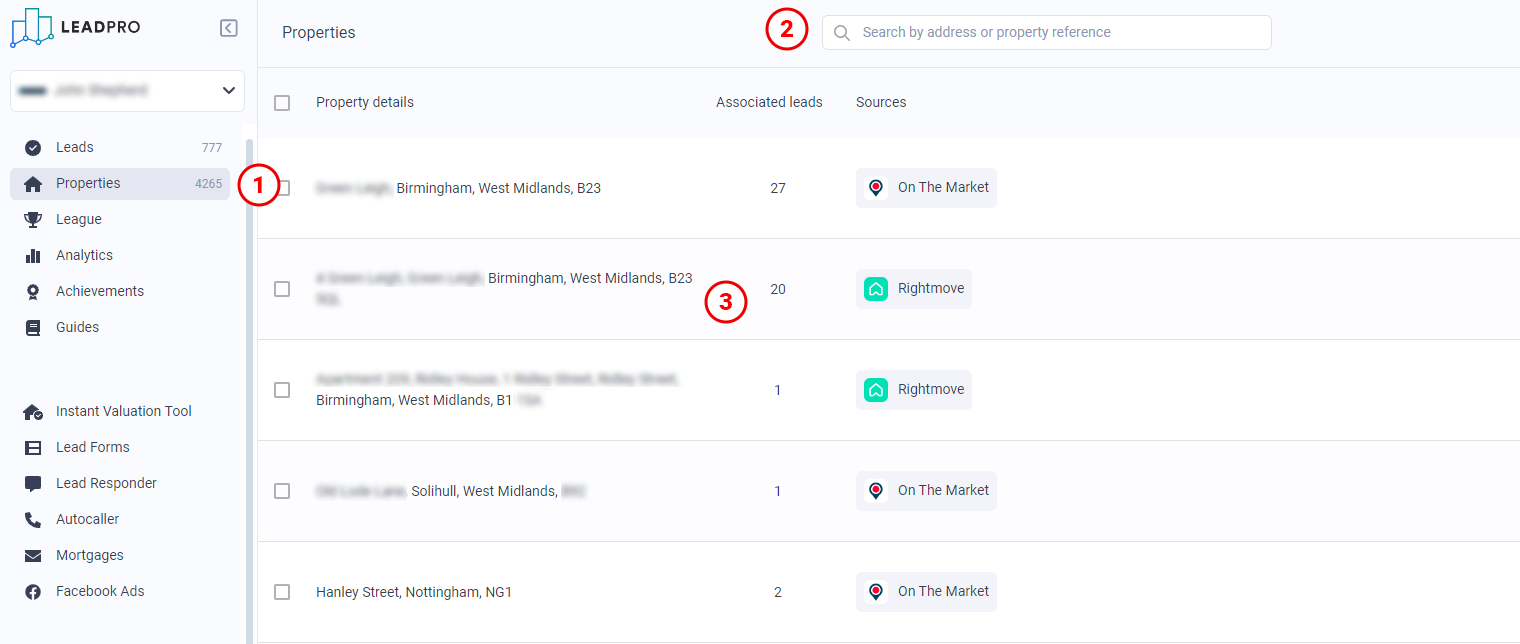
Properties View menu link This is where the properties view menu button will appear if the feature is enabled in your Leadpro system.
Search Similarly to how you can search by an individual's details in the Leads View, the Properties View allows you to search for properties by address and postcode.
Results Your properties that have leads associated with them will appear here. These will be displayed with: The property's address, the number of leads associated, and the sources involved in generating those leads. Clicking on one of these properties rows will take you to the property filter view as demonstrated below.
Using the Property Filter View
Once a property has been clicked on, you will then be shown the Property Filter View. Here you will find a filter panel on the left, allowing you to filter leads by source and questionnaire responses, and a leads view on the right, presenting leads that match your filter criteria.
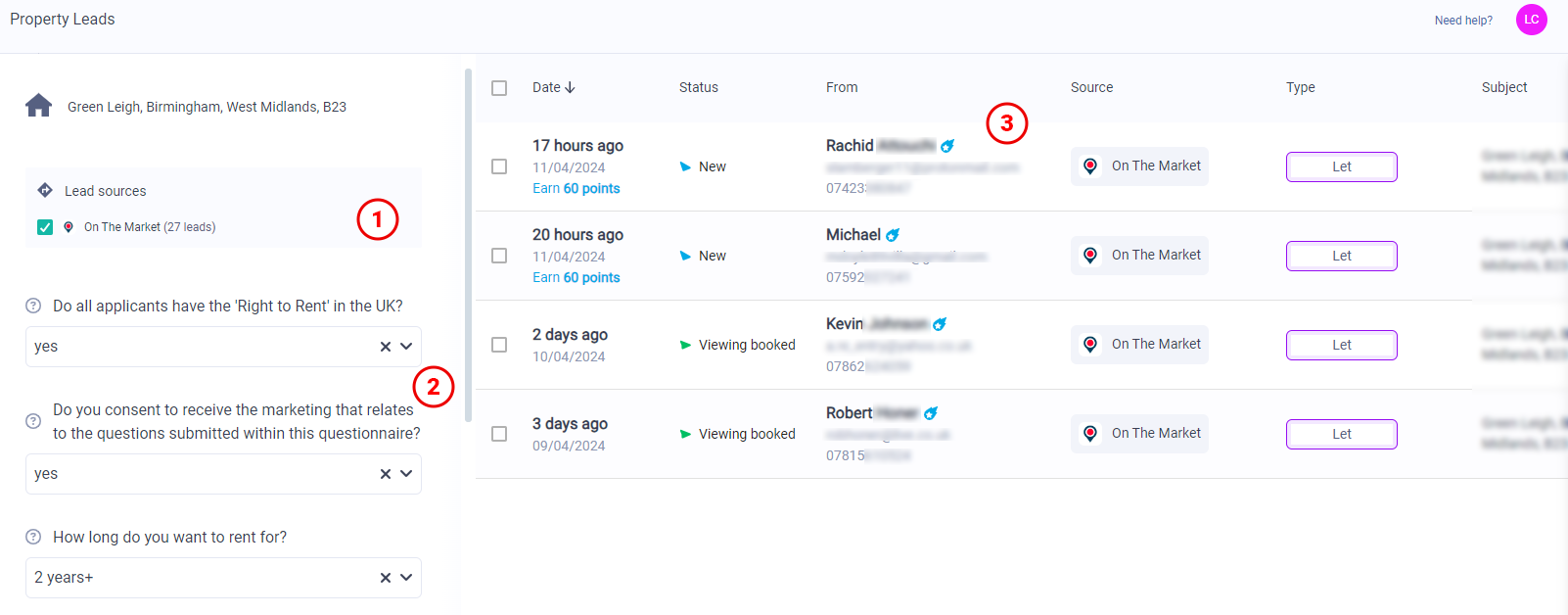
Lead sources filter You can filter down what leads you see associated to a property by the source that generated it.
Questionnaire responses filter You can filter down what leads you see associated to a property by selected preferred responses that lead individuals gave in your questionnaires.
Leads The leads that match your provided filter criteria will appear on a list to the right of the screen, followed by the usual lead details you'd expect to find in the Leads View. Clicking these leads allows you to open the lead details panel and review and action leads as you'd typically expect.