Lead Responder Workflows
If you have a lead responder tool enabled on your account, you can check and edit the instant email replies (as well as other rules) in the Lead Responder section of your LeadPro Dashboard.
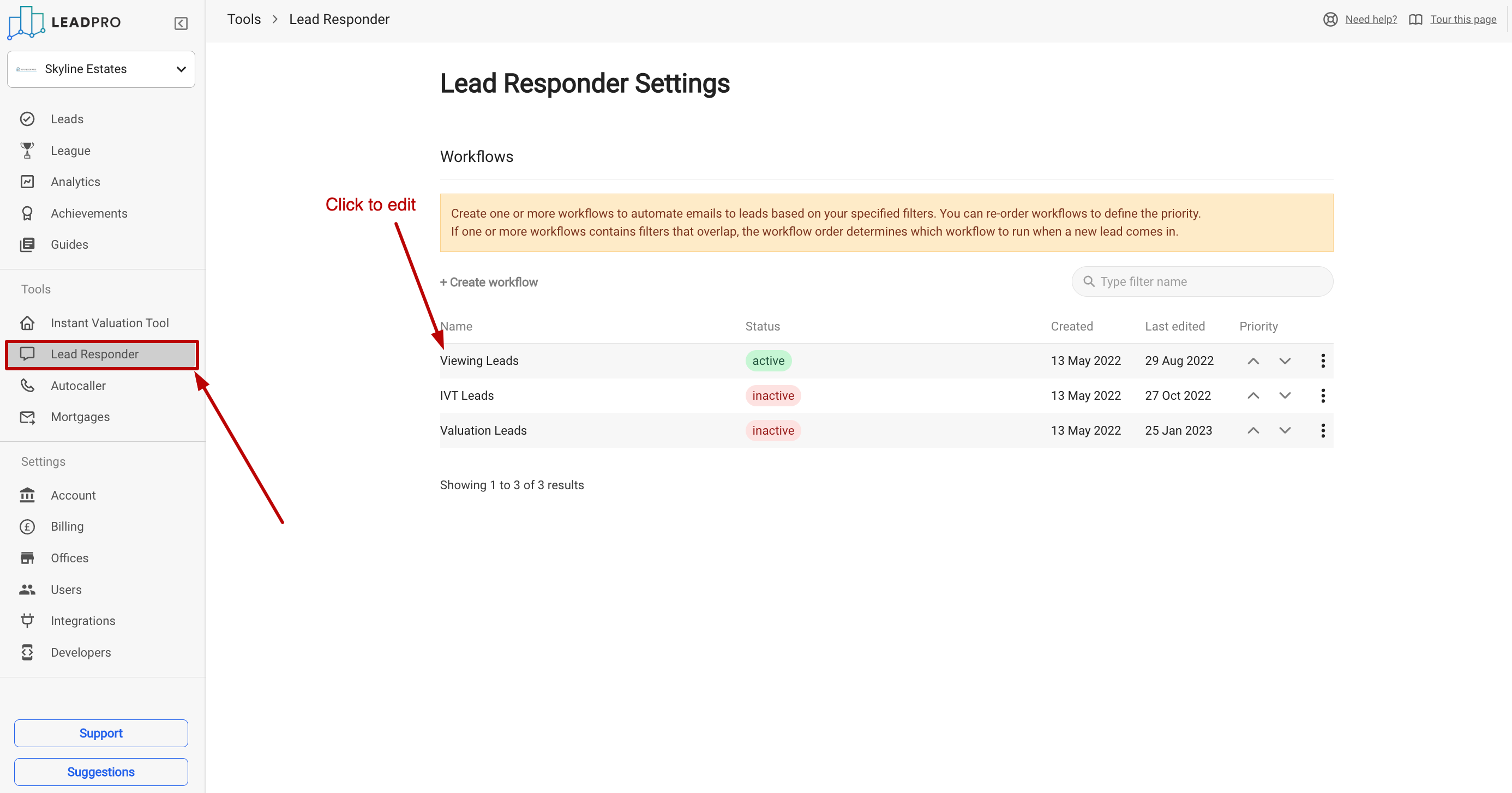
There are 3 default workflows in your account:
Viewing Leads
Instant Valuation Tool (IVT) Leads
Valuation Leads.
You can check what each consists of by clicking on the workflow's name as shown in the image above.
Please find the breakdown of the Workflow element in the image below:
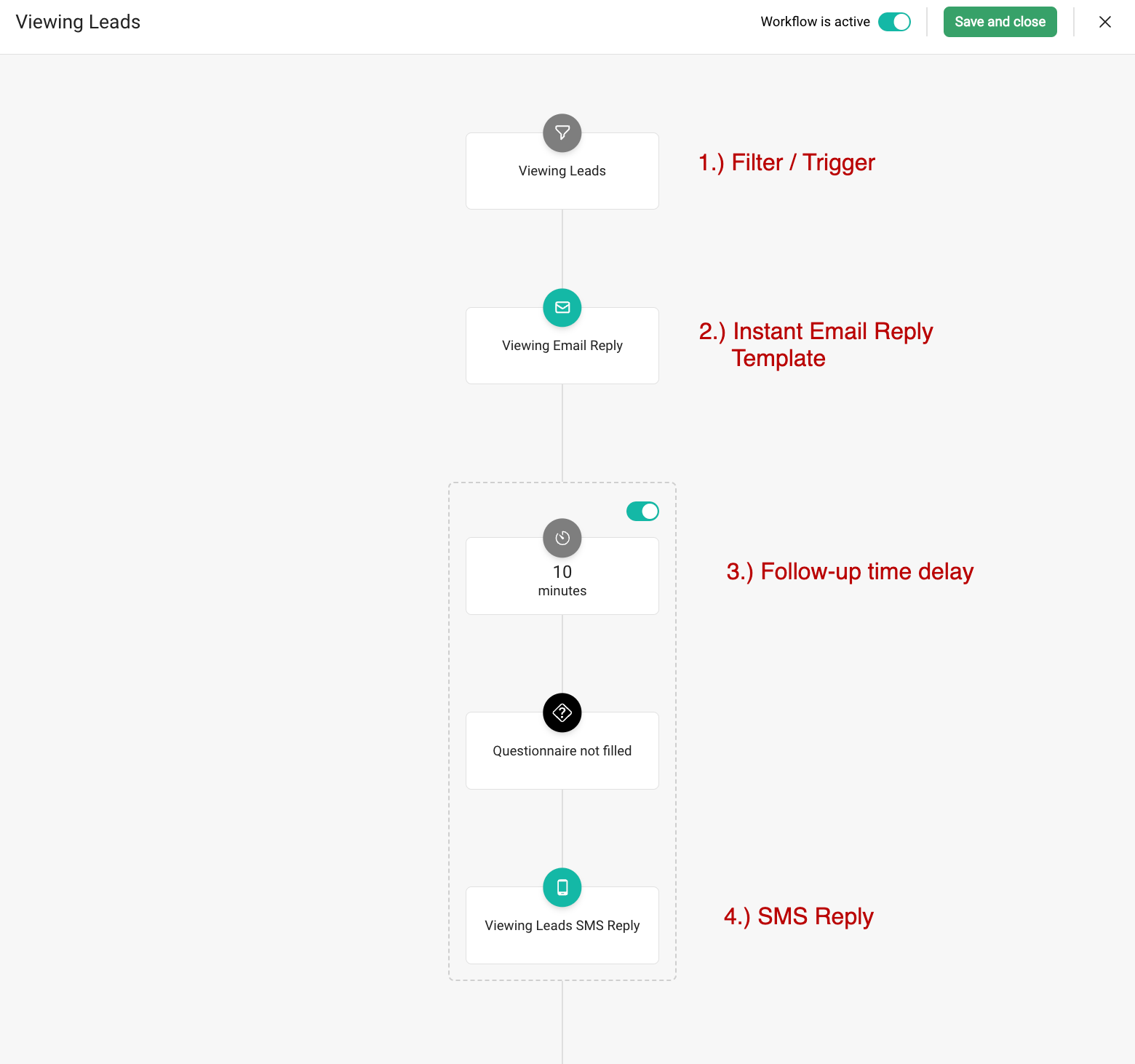
Here's a short video on Lead Responder Workflows and how do they work:
1.) Filters
Filters determine which workflow the lead will trigger once it appears in your LeadPro Dashboard.
You can update/edit the filter directly from the workflow editor, by clicking on the filter and choosing either "Edit filter" to edit the existing one, or "Create filter" to create a new one.
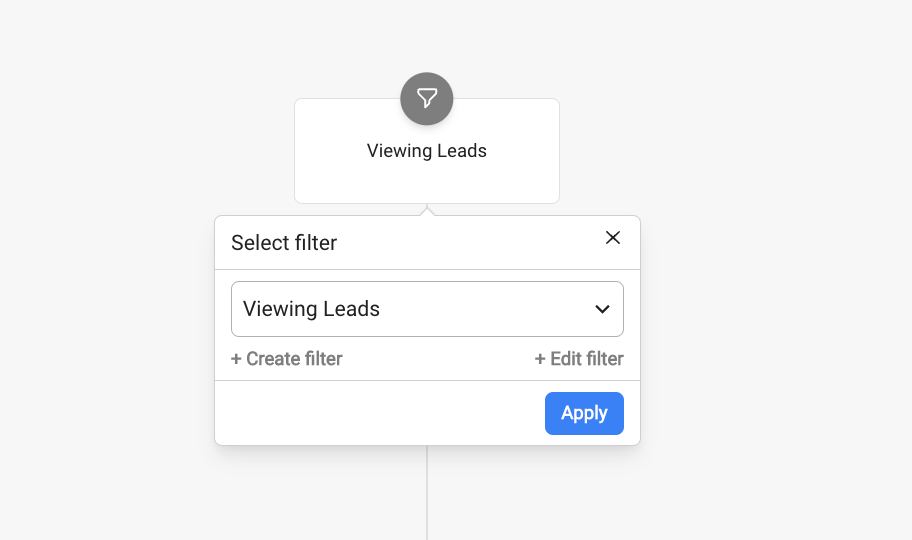
You can also access filters from the Account menu, under the Lead Responder tab. here's how those can be edited.
Here's a video on how to do that:
1.) Email Replies and SMS Replies
When the Lead Responder tool is active on your account, any incoming leads will get an instant email reply. We do create default email replies in your account and brand them according to the Account settings. Your logo and brand colours in those default templates can be updated automatically by simply uploading the brand colour and logo there. Bear in mind that this might not apply to the custom email templates you create.
You can update/edit the templates directly from the workflow editor, by clicking on the email reply and choosing either "Edit template to edit the existing one, or "Create template" to create a new one.
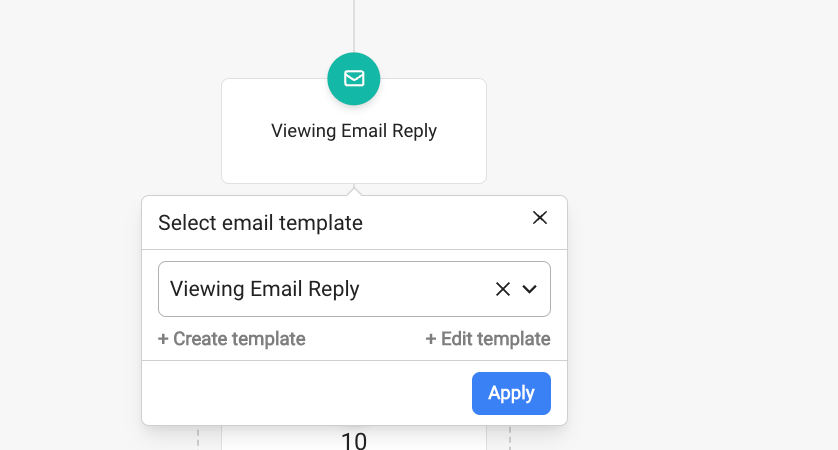
You can also access templates (email or SMS) from the Account menu, under the Lead Responder tab. Here's how those can be edited: