Lead attribution analytics
Leadpro is beginning to support the capability to prove attribution against your generated leads. This means attributing where a leads journey began, how it reached Leadpro, and how those leads have progressed through your business to generate value.
This is achieved by utilising your CRM data, and requires your CRM is integration into Leadpro (to post lead data into your CRM records) and Nurtur Data Warehouse (to routinely check for business progression events recorded against those records). When these progression events (viewings, valuations, offers, exchanges, etc.) are recorded by Leadpro, the data is attributed back against your leads, and illuminates the business generated from your leads in Leadpro.
Accessing lead attribution analytics
When Lead Attribution is set up in your Leadpro system, the analytics tab can be accessed from the Analytics page > Lead attribution analytics tab.
Leads considered in lead attribution
In order to record business progression events from your CRM back into Leadpro for your leads, this requires that the lead has been first sync'd into your CRM from the Leadpro dashboard. Subsequently this means your lead attribution analytics will only be considerate of leads previously sync'd from leadpro into your CRM.
Configuring your calculation values
The first step to demonstrating a sense of accuracy against the business generated from your leads is to configure your calculation values. This can be done using the action available at the top right of the screen:
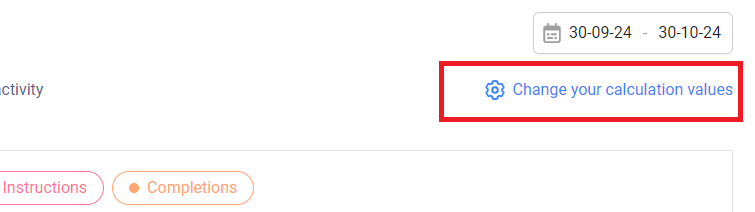
From here you have the ability to set an average value generated from you agency's sale completions and letting instructions. Both of these values will be considered when establishing the estimated value generated against each of your lead attribution measures and modules.
Navigating your Lead attribution date window
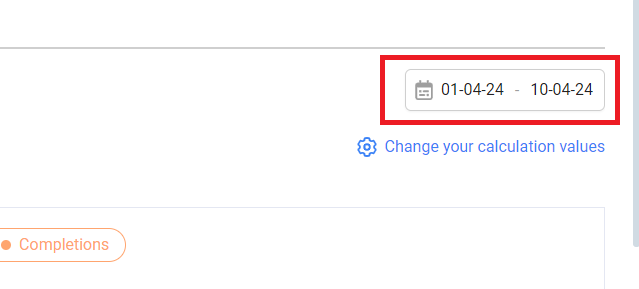
Lead attribution data is displayed between two selected dates to represent a window of activity. This can be altered using the date control at the top right of the screen:
Navigating your Lead Attribution modules
Lead attribution supports measuring attribution the four following ways:
Attribution against offices This separates your lead attribution events and measures per Leadpro office.
Attribution against sources This separates your lead attribution events and measures per the sources you utilise in your leadpro system.
Attribution against campaign names This separates your lead attribution events and measures per campaign names provided against your leads, if you utilise lead campaigns.
Attribution against journey names This separates your lead attribution events and measures per journey names applied against your leads, if you utilise journeys in leadpro.
Each module by default will display the fives measures generating the most value. Each measure is made up of four or less parameters representing progression of leads as business in your estate agency (where data is available and applicable). These are:
Appointments Records of viewing or valuation appointments recorded into your CRM.
Valuations Records of valuations undertaken from your CRM.
Instructions Vendors and landlords instructing to go on the market from your CRM.
Completions Sale and let properties that have successfully completed their sale or secured tenancy from your CRM.
Each measure is concluded by the estimated value generated from that measure type, across the activity window selected in the date control. Hovering over parameters does indicate the predictive value generated, however the estimated value presented as a conclusion only considers the Completions parameter.
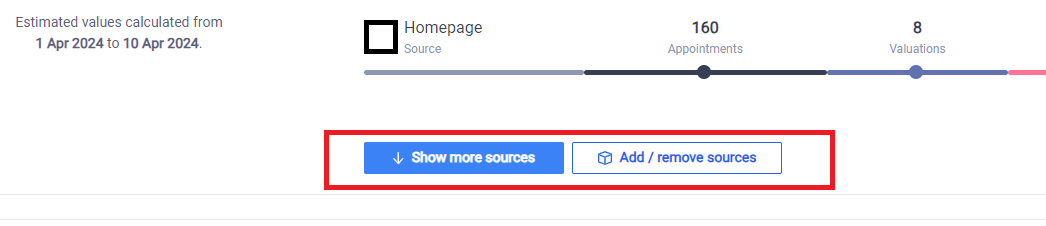
You are able to adjust or expand how many measures are presented in each module by utilising the following two actions available at the bottom of each module:
Show more items Clicking this action will display the five next most valuable measures for that module.
Add or Remove items Clicking this action will open a control that allows you to to specify which items to present, clear all items, or restore the five most valuable items for that module.
Summary level estimated values
Each module also include a summary level estimated value to the left side of the module. This indicates two summary values:
Total summary value This is the upper value, achieved by combining each measure's estimated value from the module in its entirety across the provided activity date window.
Visible summary value This is the lower value, achieved by combining each visible measure's estimated value in the module across the provided activity date window.
Individual lead attribution
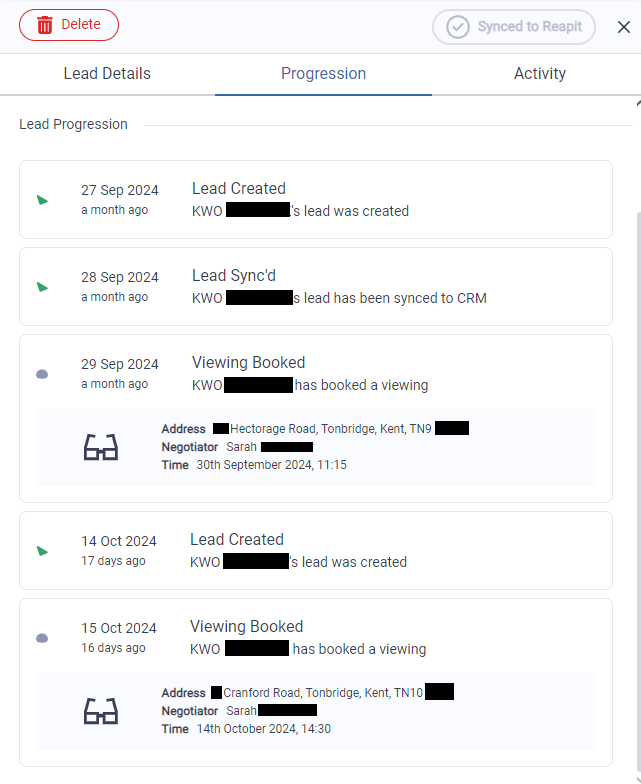
You are also able to monitor attribution against a lead from the main dashboard itself, by opening a lead and selecting the 'progression' tab at the top of the lead details panel on the right: