Alto integration
Leadpro supports pushing your leads into Alto as applicant and vendor records. We offer the capability to do this automatically upon lead creation, or manually upon an agent clicking the Alto "sync" button when viewing an individual lead.
Connecting Leadpro to Alto
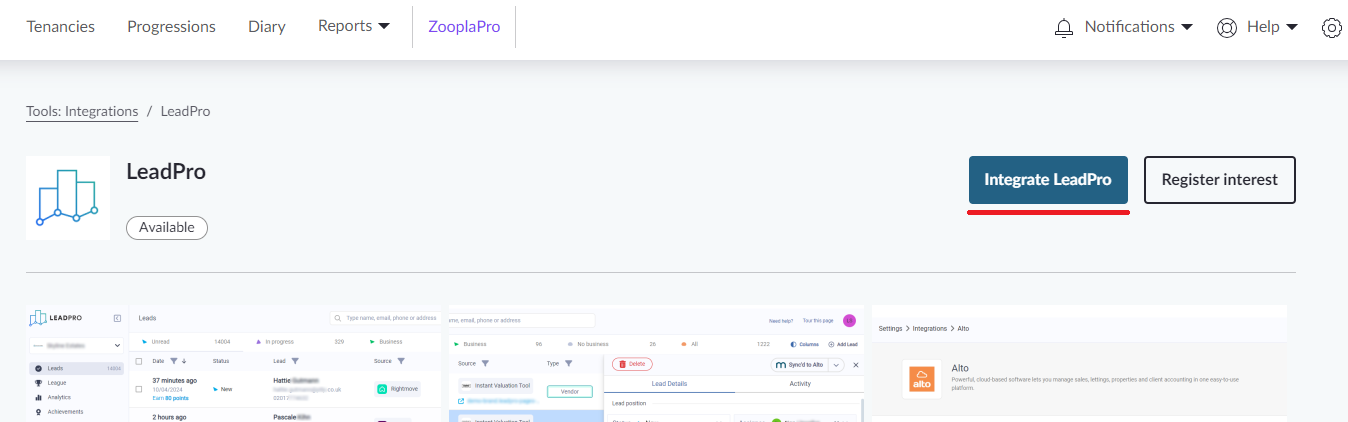
The first thing to do is install the Leadpro integration app, found inside the Alto integrations page on Alto CRM. Once installed, please reach out to Leadpro's service desk team to verify the integration connection has been established in Leadpro. The service desk team's email is support@lead.pro.
What lead data gets sync'd
The integration supports syncing the following leads and data:
Sale Leads Sale applicant leads are sync'd as applicant leads (depending on your intention mappings, see further below) with the recipient's contact details, contact address, and target property address. Also included will be:
Lead source
Assigned negotiator
Office
Additional information, such as enquiry message
Let Leads Let applicant leads are sync'd as applicant leads (depending on your intention mappings, see further below) with the recipient's contact details, contact address, and target property address. Also included will be:
Lead source
Assigned negotiator
Office
Additional information, such as enquiry message
Vendor Leads Vendor leads are sync'd as vendor records (depending on your intention mappings, see further below) with a property record for their property address being created and associated. Also included will be:
Contact details
Lead source
Assigned negotiator
Office
Additional information, such as enquiry message and online valuation estimates, if the lead was generated by our instant valuation tool
Landlord Leads Landlord leads are sync'd as vendor records (depending on your intention mappings, see further below) with a property record for their property address being created and associated. Also included will be:
Contact details
Lead source
Assigned negotiator
Office
Additional information, such as enquiry message and online valuation estimates, if the lead was generated by our instant valuation tool
Configuring your Alto integration
Once your integration to Alto has been established. You can access your Alto integration configuration from within your Leadpro account by following the left-hand menu: Integrations > Alto. This will open the Alto configuration screen.
Choose manual or automatic sync
The Alto integration offers you the capability to automatically sync leads, or manually sync leads. This can be decided at the top of the Alto integration configuration screen.
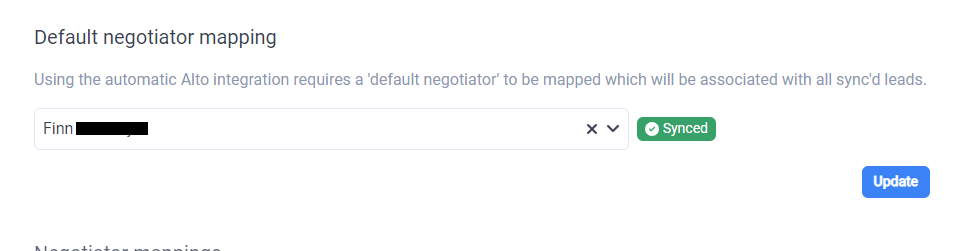
Automatic Sync Choosing this will mean every time a new lead is created in your Leadpro system, it will instantly attempt to Sync as an applicant or vendor record in Alto. The Alto CRM platform requires new records to be associated with a negotiator. To meet this requirement, you will need to specify a 'default negotiator' in your configuration, which will be associated with all your automatically created records in Alto. After selecting a default negotiator, remember to click "Update" under your selection.
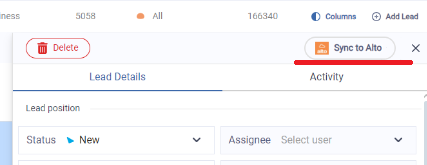
Manual Sync Choosing this will mean non of your lead will sync into Alto until your agents choose to sync them. Each time you click on a lead in Leadpro and view its details, you will find a 'Sync to Alto' action at the top right of the details panel. Clicking this will allow the agent to adjust the lead's contact address and push it into Alto.
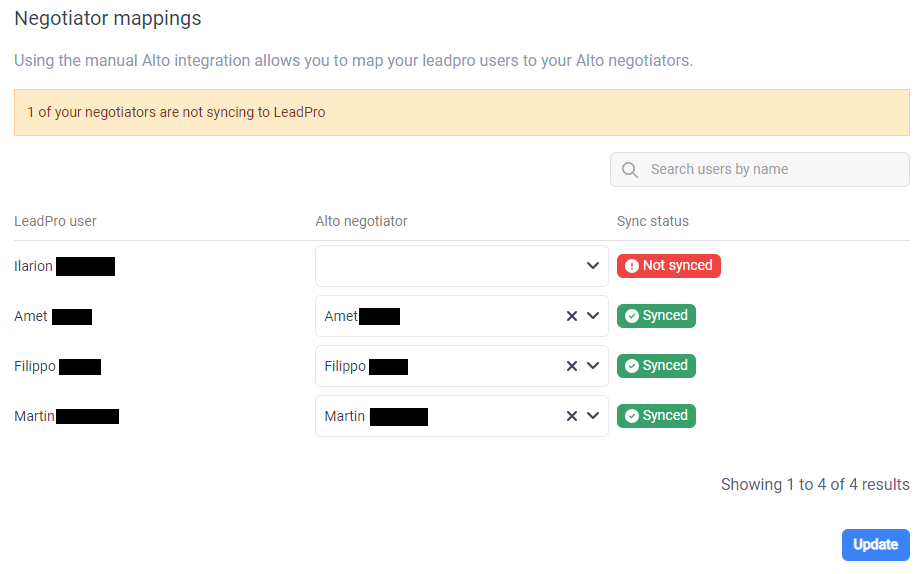
If you choose to manually sync your leads, you can map your Leadpro users to your Alto negotiators in the integration configuration screen. This means the lead's assignee will be specified as the associated negotiator on its Alto record. Once you've mapped your negotiators, remember to press the "update" button below the mappings.
Mapping your offices
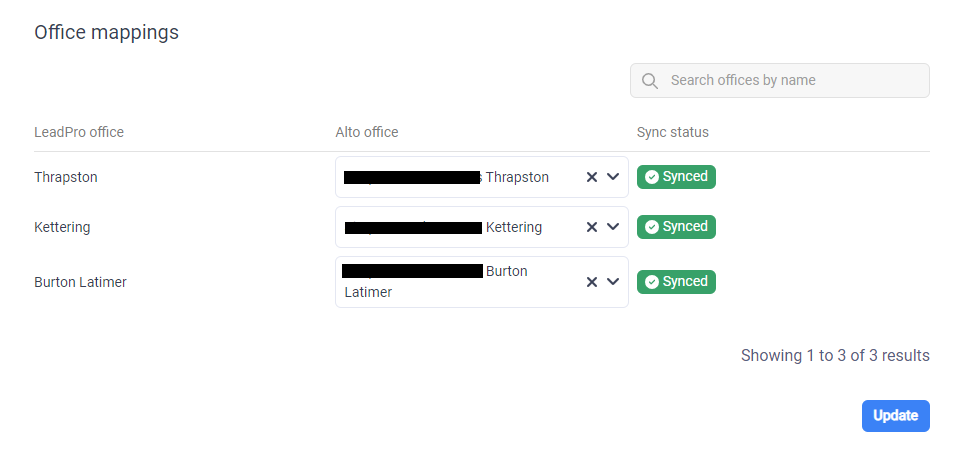
You can map your Leadpro offices to your Alto offices in the configuration page. When mapped, your sync'd Alto records will be appropriately associated with the office the lead belongs to in Leadpro.
Mapping your lead sources
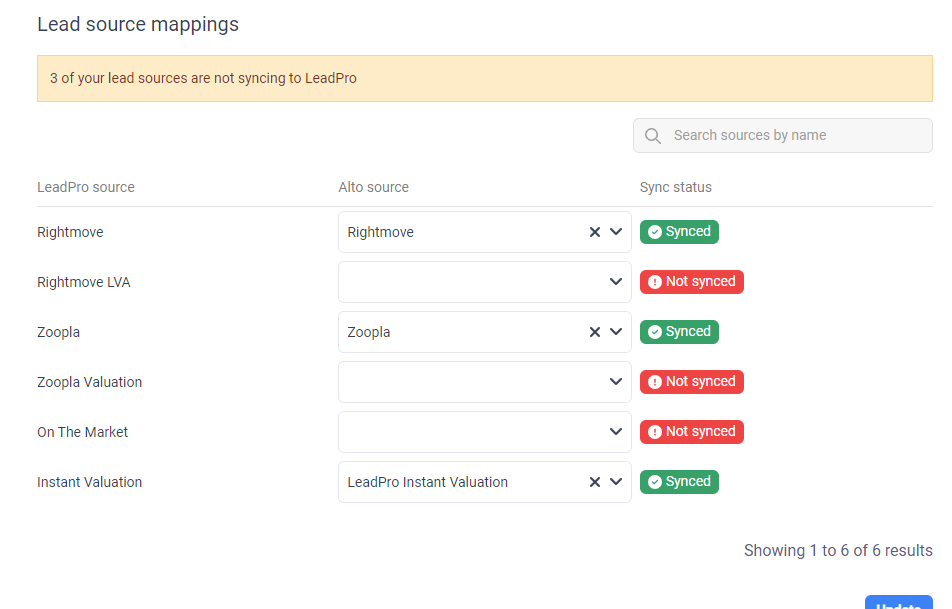
The Alto integration also allows you to map your lead sources, to give you an accurate view of where your Alto records are originating from. The mapping screen will display your portal sources, API source, IVT sources, and any custom sources you have configured in Leadpro. Your Alto sources can be found and edited by clicking the "Tools" action in the top right of Alto, then following Templates and Admin > System Administration > Group Settings > Lead Sources. Once you have applied your mappings, remember to click the "Update" button under the mappings. Note: It's important to map all sources that you utilise in Leadpro. Leads without mapped sources cannot be sync'd into Alto.
Mapping your intentions
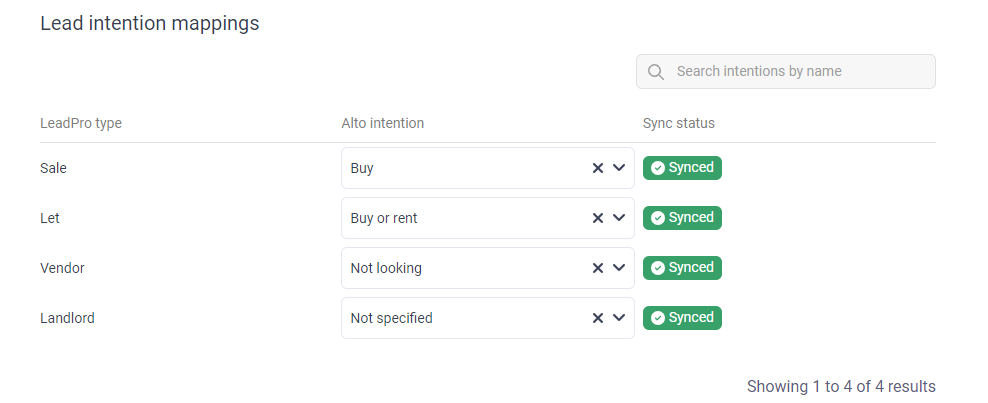
Alto determines if a new record is an applicant, vendor, or landlord using intentions. You can map your lead types from Leadpro to your Alto intentions. Intentions are customizable in alto, but the below screenshot recommends what mappings you should make using the default Alto intentions.