Lead Forms: Setting up form actions
Form actions are used to decide what happens to the response data collected when a recipient submits a lead form. There are two base form action types
Create lead This action maps form submissions to a new lead and adds it to your dashboard.
Send email This action records the response data into an email notification, configured to send to one or more addresses of your choice.
You can create multiple actions per form, meaning you could create multiple leads, and send multiple email notifications, from one lead response, if you wanted to.
Creating an action
On the actions tab click the 'Add a new action' button to create an action element. Firstly, you'll need to pick an action tab, as described above.
Creating a 'create lead' action
A 'create lead' action requires you to select mapping between your questions and the essential lead details needed to generate a useful lead.
NOTE Your question types will matter when mapping fields. For example, only an 'Email input question' type will be recognised as a mappable question for the 'email address' lead mapping.
NOTE Every question you intend to use as a mapping will need to be marked as 'required'. These mapping fields are essential for creating leads, so the recipient cannot provide blank data.
The mapping fields that require a question to be mapped to them are:
Email This mapping will capture the lead's email address. This mapping requires a question type of 'email input' that is marked as required.
First name This mapping will capture the lead's first name. This mapping requires a type of 'single line text input' that is marked as required.
Last name This mapping will capture the lead's last name. This mapping requires a type of 'single line text input' that is marked as required.
Phone This mapping will capture the lead's contact number. This mapping requires a type of 'phone input' that is marked as required.
Postcode This mapping will capture the lead's address postcode. This mapping requires a type of 'postcode input' that is marked as required. This input will be used to associate the lead to with the correct office.
Address This mapping will capture the lead's address. This mapping requires a type of 'single line text input' that is marked as required.
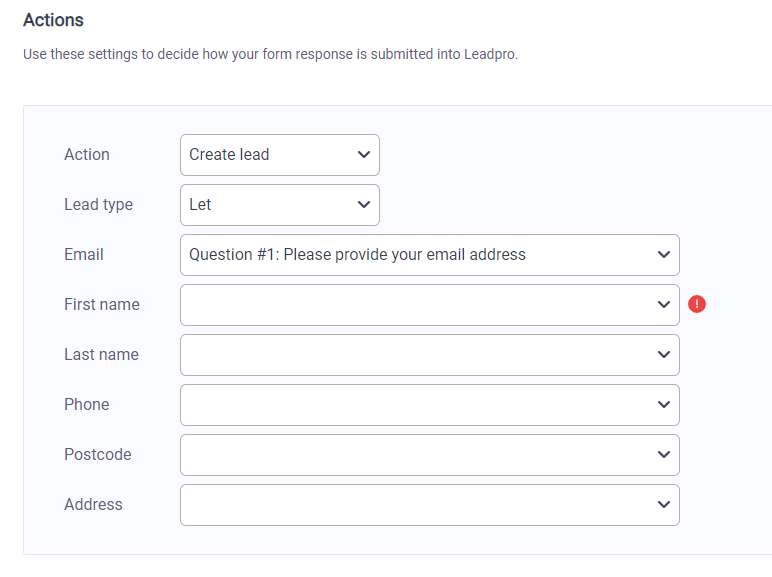
The lead type drop down can be used to identify what the type of the lead generated from form responses will be. You can create multiple 'create lead' actions to generate multiple lead types from a single response.
Creating a 'Send email' action
A 'send email' action requires you to specify a routing type:
Office This type will send the lead to the email addresses configured against your Leadpro offices. For this you will need to provide a lead type and a postcode mapping to ensure the correct office's email address is picked.
Direct This type allows you to specify one or more email addresses to send the email response to.