Lead Forms: Setting up form questions
The lead form questions tab lets you prepare and order your questions. This area is fully customisable in what information you'd like your recipients to provide when submitting a form response. Below are considerations and steps to help you understand and take full advantage of the tools available for preparing your lead form questions.
Prepare questions that you can utilise for your leads
Before adding any questions into your form, think about what data you're looking to collect from recipients. Lead forms allow you to generate leads and or generate email responses from submitted response. In the case of generating leads, there is required data you'll need from the form to create a meaningful lead from, this data is email address, first name, last name, contact number, postcode and address. In the actions tab, you can map which of your questions will fulfil each of these fields.
If you intend your form only to generate email responses, and not leads, you have no restrictions on what types of questions you can ask.
Adding a question to your form
On the questions tab, you have a vertical list of question types on the left, and a panel to structure and edit your questions on the right. Your choices of question types offer you different response input methods, such as text responses, single-choice responses, as well as pre-validated response types, such as email responses and postcode responses.
Pick a question type and drag it from the left-hand list and drop it in the right-hand panel. This will display the question in a similar format to how your recipients will see it.
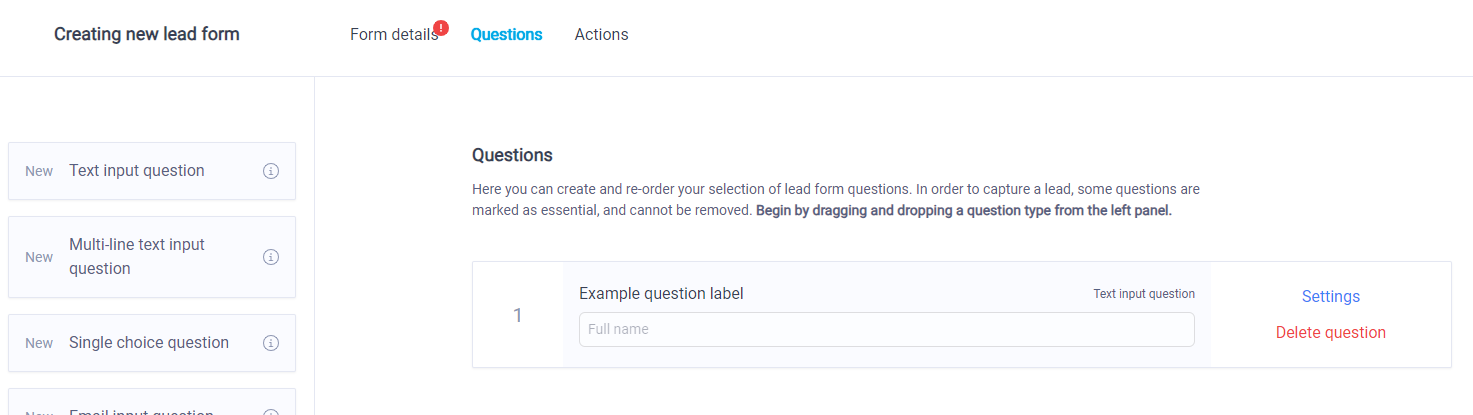
When you have multiple question elements added to your form, you can drag the left-hand side of a question element to re-order them.
Customising a question
Each question includes a 'settings' action. Click this open open the customisation popup for that question. Which options are available to customise change depending on the question type used. Some of the customisations include:
Question label This is the question text itself.
Question placeholder This is text that appears in the response field for text questions. It's used to encourage the recipient on what a sensible answer is, using an example.
Required question This is a checkbox that marks the question as requiring a response from the recipient.
Once you have established all the questions you'd like in your form, you can move onto preparing your form actions. Lead Forms: Setting up form actions