2FA (2 Factor Authentication)
Two-factor authentication (2FA) adds an additional layer of protection to your password, and LeadPro now enables its users to activate 2FA on their log-ins, and here’s how to do that.
1. Enable 2FA on your account
Make sure you are logged in to your LeadPro account. Then navigate to your profile by clicking on the favicon in the top right corner of the screen and then clicking on “Profile” from the dropdown menu.
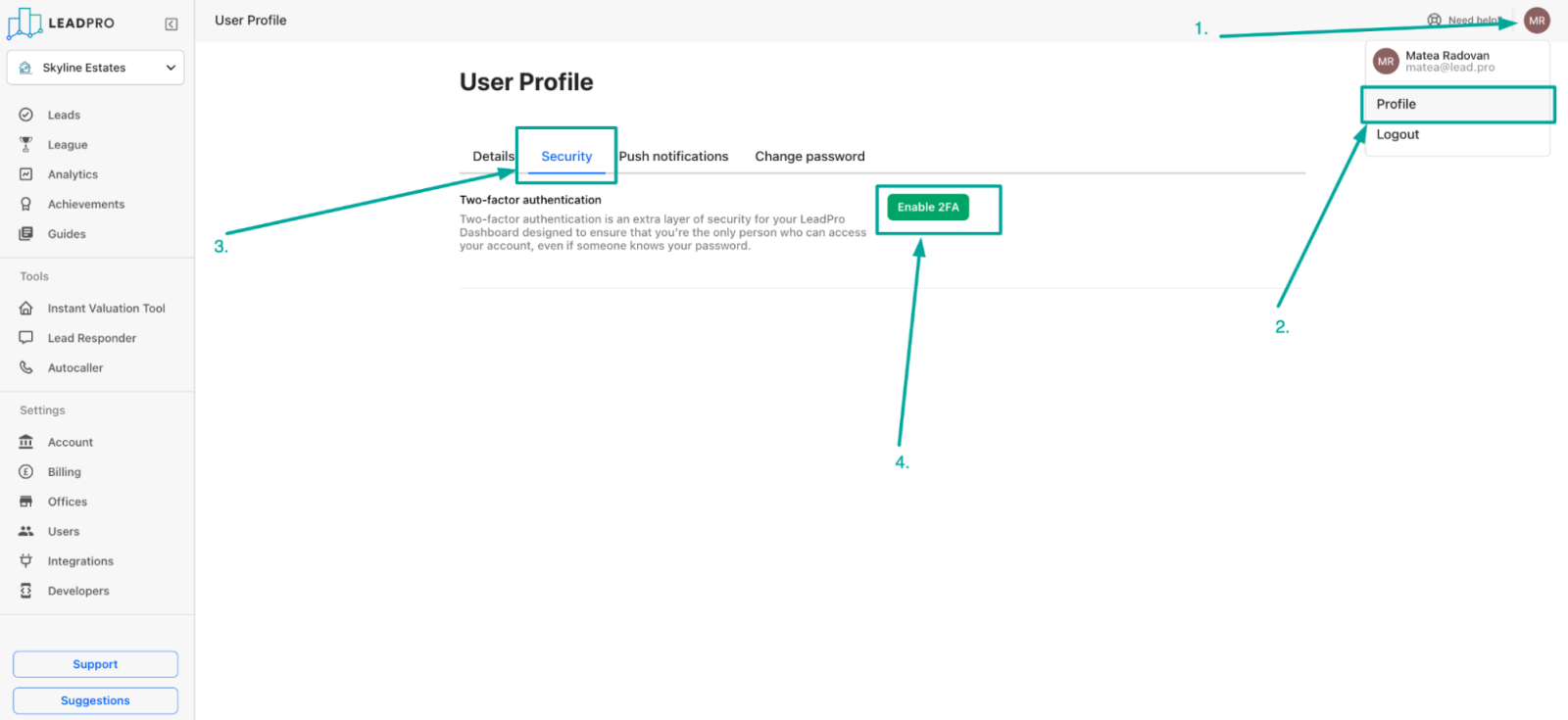
Once you’re in your User Profile settings, navigate to the “Security” tab and click on “Enable 2FA”.
2. Verify your phone number
The interface will then prompt you to add your phone number - please make sure you add a valid mobile phone number here (a number that can receive SMS) and click on “Next”.
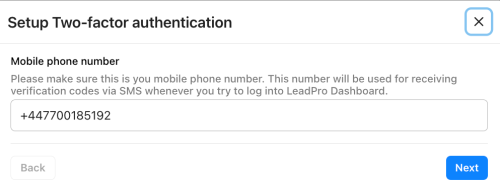
Once the phone number’s been added, we’ll send an SMS message to that number containing a verification code.
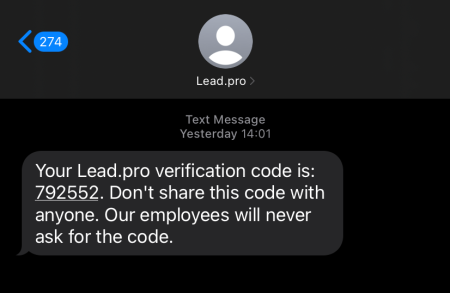
Once received, you’ll need to enter that verification code in the interface and click “Verify”. If you need another text message sent, you can click on “Request code” and a new message will be sent your way.
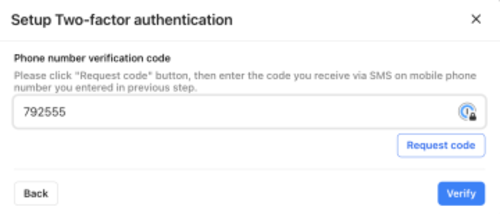
When that's that’s done, 2FA will be enabled on your account, and next time on login, you’ll be prompted to enter the verification code sent to your phone number.
If you have any issues setting the 2FA up, please reach out to contact@lead.pro or use the Support button in your Dashboard.